
Since macOS Sonoma, your Mac can show a large clock on the Lock Screen and keep it on screen while the screen saver runs. The setting moved in macOS Tahoe, which also lets you choose the clock's font. Here is where to find it in each version, what it can and can't do, and how to go further.
Turn On the Large Clock in macOS Tahoe and Later
- Open the Apple menu and choose System Settings.
- Click Wallpaper in the sidebar.
- Click Clock Appearance.
- Choose whether the large clock appears, and where: on the Lock Screen only, or on both the screen saver and the Lock Screen.
- Pick a font and a weight, from light to heavy.
Turn On the Large Clock in macOS Sequoia and Sonoma
- Open the Apple menu and choose System Settings.
- Click Lock Screen in the sidebar.
- Next to Show large clock, choose whether the clock appears with the screen saver and on the Lock Screen, on the Lock Screen only, or never.
There is no font or weight to choose before macOS Tahoe.
Make Sure the Screen Saver Starts First
The clock over the screen saver only appears if the screen saver starts before the display turns off. Two settings decide which comes first.
The screen saver's delay is in Wallpaper settings, under Screen Saver, on macOS Tahoe and later. On Sequoia and Sonoma, it is Start Screen Saver when inactive, in Lock Screen settings.
The display's delays are in Lock Screen settings: one on battery and one on power adapter. Keep both longer than the screen saver's. On Sequoia and Sonoma, a warning icon appears next to the screen saver setting when the display would turn off first.
What the Built-in Clock Doesn't Do
Apple keeps the large clock simple. On Sequoia and Sonoma, the only choice is where it appears; Tahoe adds its font and weight. There is no other layout and no color setting. And it stays on the Lock Screen and the screen saver: while you work, the time is back in the menu bar.
A Clock Screen Saver That Matches Your Desktop
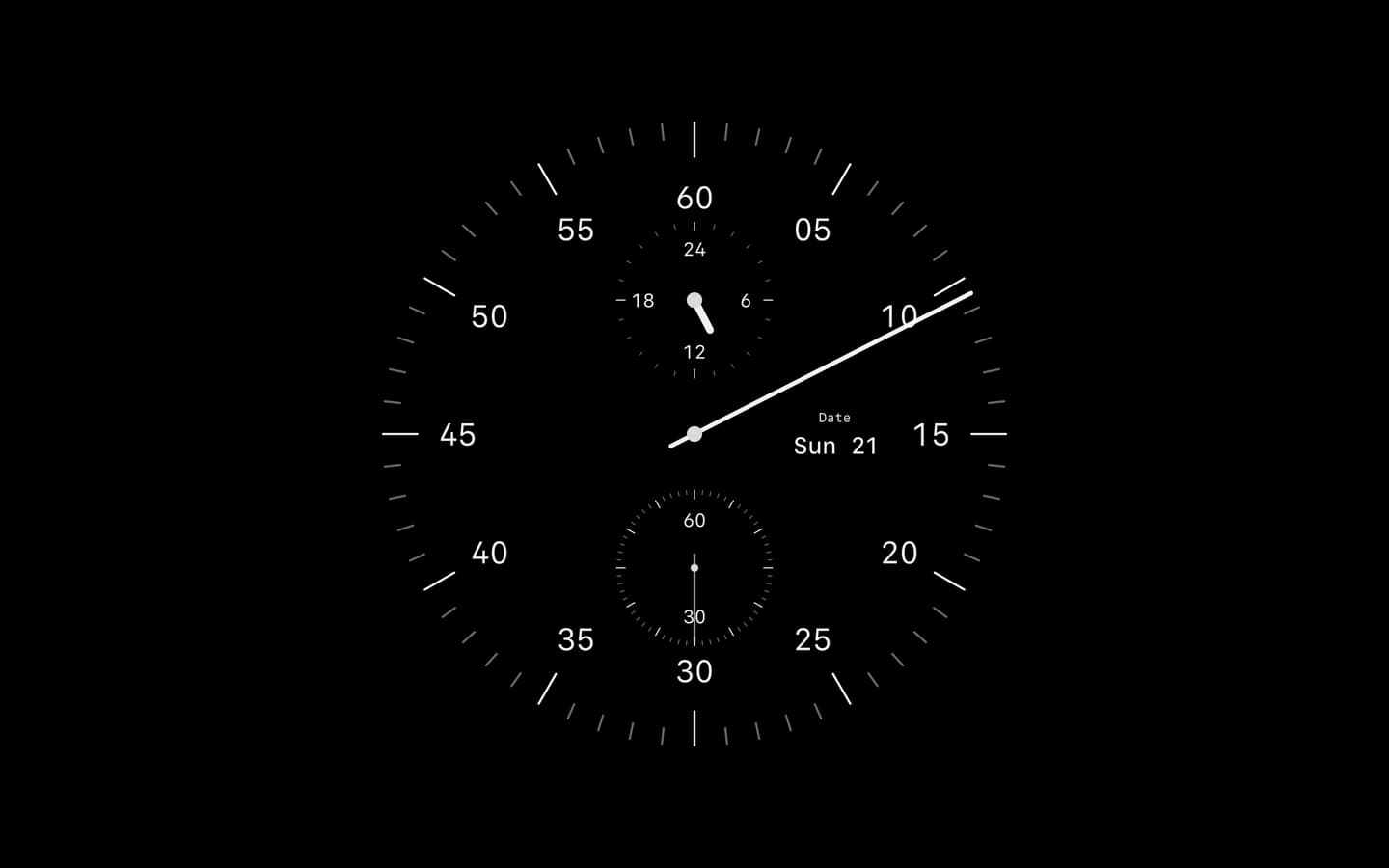
Cadran adds a screen saver built from its clock faces: 24 of its 25 faces run as a screen saver. With Same as Desktop on, the screen saver shows the same face as your desktop, where Cadran draws the clock into your wallpaper. Turn it off to give the screen saver its own face, background, message, font and color. A short message can sit below the clock, and on macOS 27, with Cadran Pro, a clock in Liquid Glass keeps its glass in the screen saver when your desktop is Transparent.
To set it up, install Cadran and open its Screen Saver page to install the screen saver; its status menu can reinstall or remove it later. Then choose Cadran in your Mac's screen saver settings. Six faces are free; Cadran Pro unlocks all 25. Cadran requires macOS 14 or later.
Avoid Two Clocks at Once
If you use a clock screen saver and also see the system clock over it, set the large clock to appear on the Lock Screen only: in Clock Appearance on macOS Tahoe and later, in Show large clock on Sequoia and Sonoma. The Lock Screen keeps its clock, and the screen saver shows yours alone.
On macOS Tahoe and later, the large clock lives in Wallpaper settings, under Clock Appearance. On Sequoia and Sonoma, it is Show large clock, in Lock Screen settings. Check that the screen saver starts before the display turns off, and the clock will be there whenever you step away.