
Out of the box, the clock in your Mac's menu bar shows hours and minutes. Seconds are one switch away, but that switch moved in macOS Tahoe: it now lives in Menu Bar settings, while macOS Sequoia and Sonoma keep it in Control Center settings. Here is where to find it in each version, along with the other clock options worth knowing.
Turn On Seconds in macOS Tahoe and Later
- Open the Apple menu and choose System Settings.
- Click Menu Bar in the sidebar. You may need to scroll down.
- Under Menu Bar Controls, click Clock Options.
- Turn on Display the time with seconds.
The clock now reads hours, minutes and seconds. Turn the setting off to go back to hours and minutes.
Turn On Seconds in macOS Sequoia and Sonoma
- Open the Apple menu and choose System Settings.
- Click Control Center in the sidebar. You may need to scroll down.
- In the Menu Bar Only section, click Clock Options.
- Turn on Display the time with seconds.
Not sure which version you have? Choose About This Mac from the Apple menu: the window shows the name and version number of the macOS your Mac is using.
The Other Clock Options
The same Clock Options window holds a few more settings.
Show date offers When Space Allows, Always or Never. When Space Allows hides the date whenever the menu bar runs out of room, which is why it can vanish from a crowded menu bar. Show the day of the week adds the weekday before the date.
Style switches between a digital and an analog clock. The analog clock is a small dial, and choosing it turns off the other time options, seconds included. Show AM/PM adds AM or PM after the time.
Flash the time separators blinks the colons once a second: a quieter way to see time pass than a ticking seconds display. Announce the time has your Mac speak the time on the hour, the half hour or the quarter hour, in a voice you choose.
Switch to a 24-Hour Clock
The 24-hour setting isn't in Clock Options. Open System Settings, click General, then Date & Time, and turn on 24-hour time. The menu bar then shows 15:00 instead of 3:00 PM.
If the Clock Looks Dimmed
A grayed-out clock usually means a Focus is on while its menu bar icon is hidden. On macOS Tahoe and later, open Menu Bar settings and set Focus to Always Show or Show When Active. On Sequoia and Sonoma, the same choice is under Focus in Control Center settings. The clock then returns to full brightness.
When the Menu Bar Isn't Enough
Even with seconds on, the menu bar clock stays small, especially on a large display. macOS offers two bigger clocks: the Clock widget, which you can place on your desktop since macOS Sonoma, and the large clock on the Lock Screen and over the screen saver.
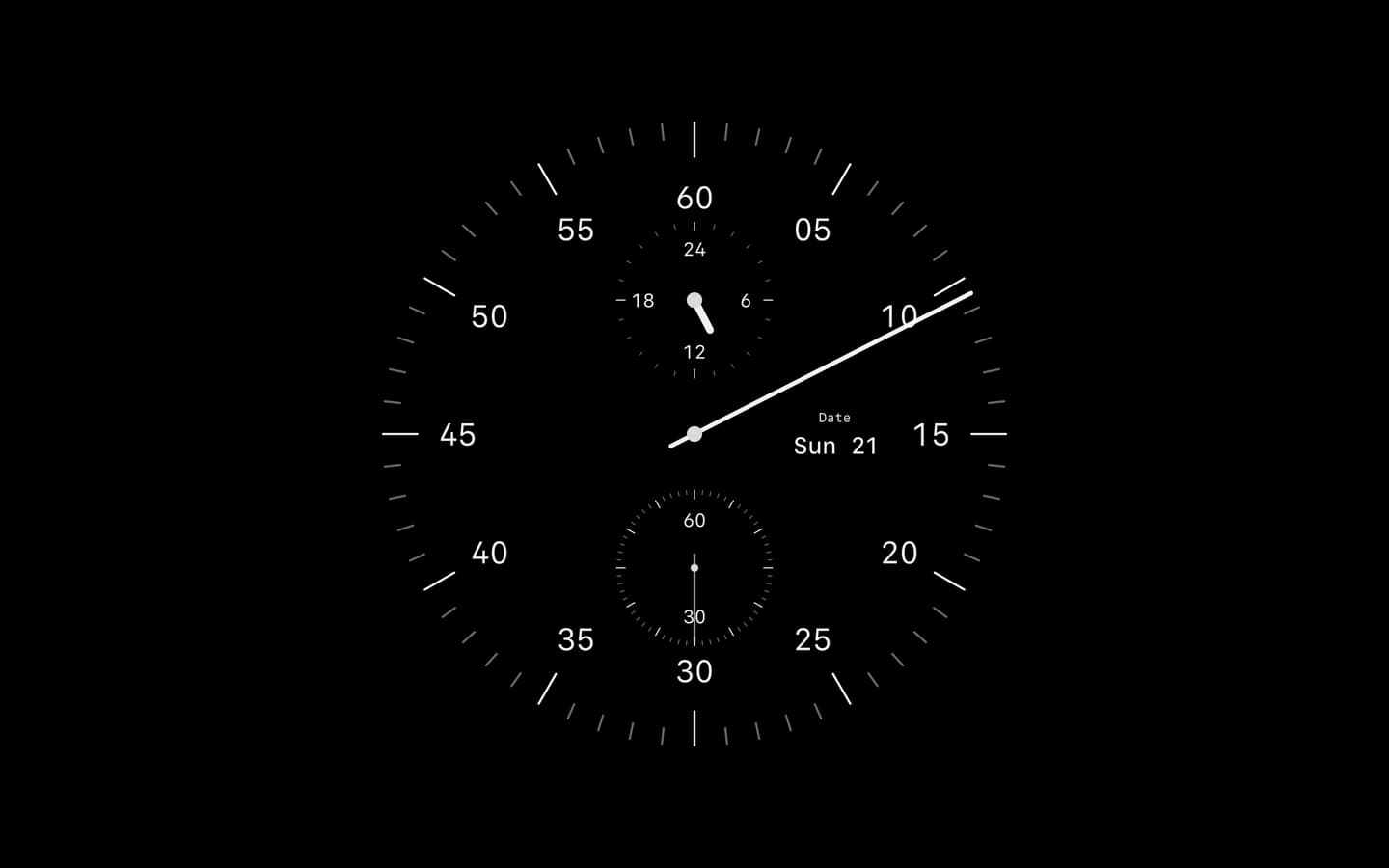
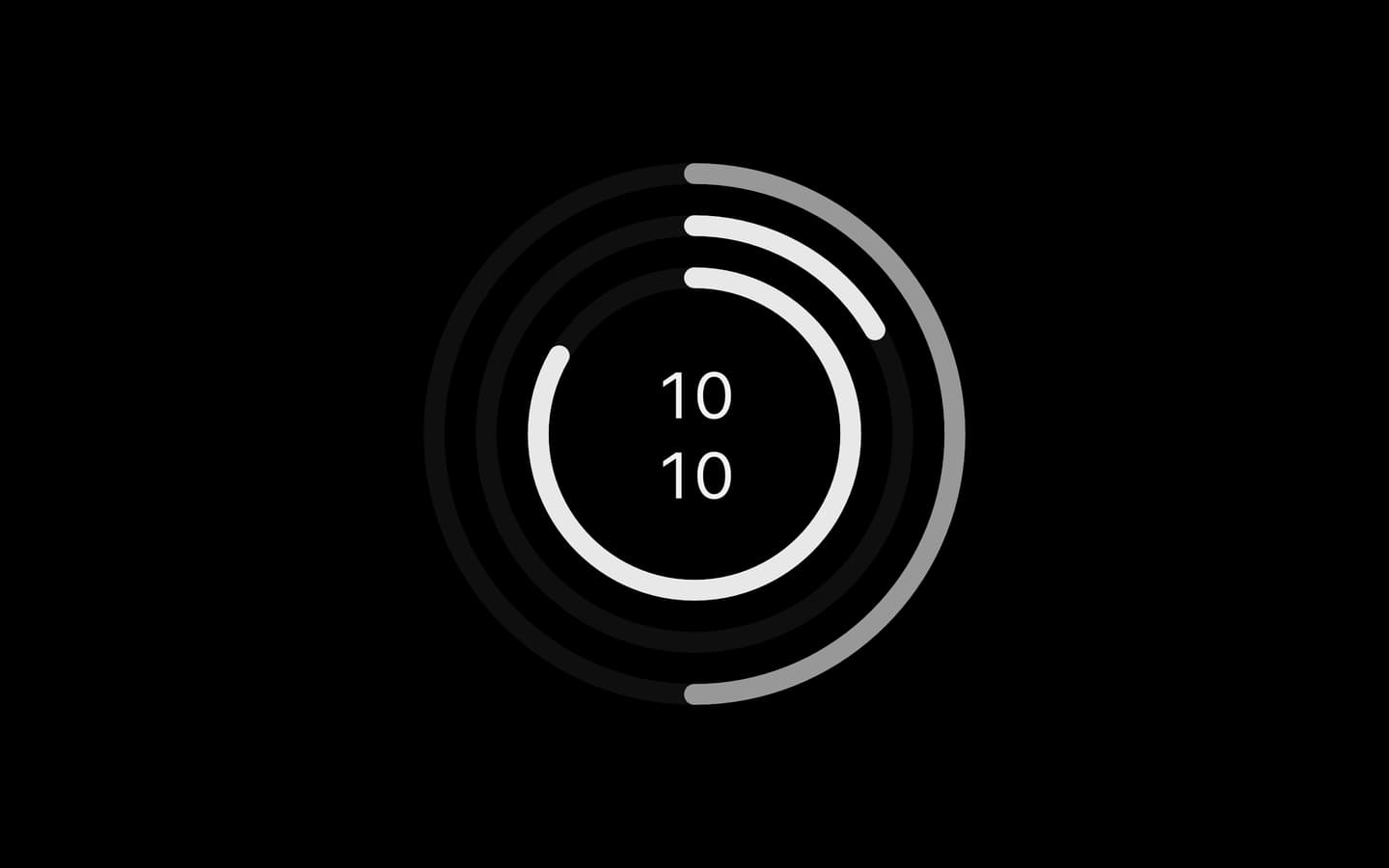
Cadran takes another route. It draws the clock into your wallpaper, behind your windows and icons, so the time is large and visible whenever your desktop is. Several faces, Clima and Departure among them, can show seconds, and the same face can run as your screen saver. Six faces are free; Cadran Pro unlocks all 25. Cadran requires macOS 14 or later.
Seconds take one switch: Display the time with seconds, in Clock Options. On macOS Tahoe and later you reach it from Menu Bar settings; on Sequoia and Sonoma, from Control Center settings. If seconds don't appear, check that the clock style is digital: the analog clock has no seconds.