
Apple's support page for multi-monitor setup is three paragraphs long: plug in, arrange in Settings, done. In practice, there's a lot more to figure out. After years of running dual and triple displays on various Macs, here are the things I wish someone had told me upfront.
The hidden settings that actually matter
Everyone finds System Settings → Displays for arrangement and resolution. Here's what most people miss: "Displays have separate Spaces" (System Settings → Desktop & Dock) is the single most important toggle for multi-monitor. When ON (default), each display has its own set of Spaces and swiping on one doesn't affect the other. When OFF, all monitors share one Space and full-screen apps take over every screen. Most people want it ON, but some workflows (like spanning a video editor timeline across two screens) need it OFF. Hot Corners work per-display. If you set a hot corner on your primary monitor, moving your cursor to that corner on a secondary display won't trigger it. This catches people off guard. macOS doesn't remember window positions well when you disconnect and reconnect a display. Third-party tools like Stay or Moom can save and restore window layouts. This is almost essential if you use a MacBook that you dock and undock regularly. The menu bar follows your "main" display. You can change which display is primary by dragging the white bar in Display arrangement settings. But there's no way to put the menu bar on all displays. It's always on one.
Wallpapers, cables, and the things that go wrong
macOS lets you set different wallpapers per display. Click a display in the preview at the top of Wallpaper settings, then choose. But Dynamic Wallpapers don't always sync their time-of-day shift across displays. If that bothers you, use static wallpapers or a third-party wallpaper app that handles multi-monitor explicitly. On cables: not all USB-C cables carry video. If your external display shows nothing or flickers, try a different cable before blaming the monitor. Thunderbolt 3/4 cables always work for video. Generic USB-C cables may only carry data and power. This is the #1 cause of "my monitor isn't detected" on Mac forums. DisplayLink adapters let you connect extra displays beyond what your Mac natively supports (useful for M1/M2 MacBook Air which officially supports only one external). They work, but there's noticeable input lag and screen recording doesn't capture DisplayLink screens. Fine for a reference monitor, not great for your primary workspace. Refresh rate matters more than you'd think. If one display runs at 60Hz and the other at 120Hz, cursor movement will feel inconsistent as it crosses screens. Match refresh rates where possible.
Making each screen feel purposeful
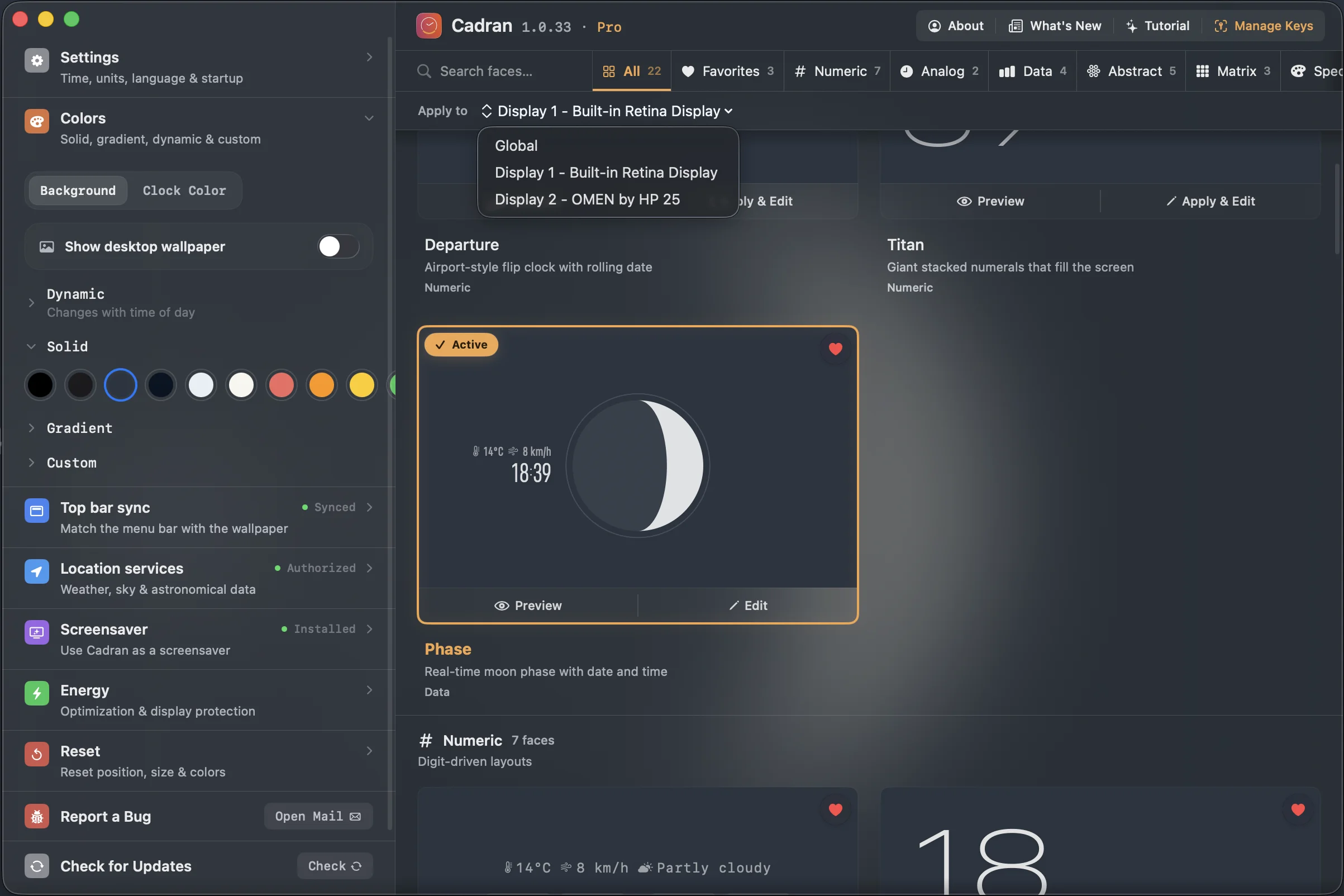
The real benefit of multiple monitors isn't more pixels. It's reducing context switching. Here's how to set that up: Assign apps to specific displays using Spaces. Right-click an app's Dock icon → Options → Assign to "This Desktop" on the display where you want it. Once configured, that app always opens on that screen. Keep communication on one display and creation on the other. Slack, Calendar, and Messages on the secondary; your editor, browser, or design tool on the primary. This prevents notification-driven interruptions from pulling your eyes away from focused work. Match your wallpaper tone across screens. You don't need the same image, but keeping a consistent brightness (all dark or all light) makes the setup feel cohesive. A jarring bright wallpaper next to a dark one is surprisingly distracting. If you want a clock visible across all screens, wallpaper-layer clock apps like Cadran can show a different face on each display. It's one of the few apps that genuinely takes advantage of per-monitor configuration. Consider vertical orientation for one display. Rotating a monitor 90° gives you a perfect surface for long documents, code, or chat threads. macOS supports this natively in Display settings → Rotation.
Multi-monitor on Mac works well once you know the gotchas. The short version: turn on separate Spaces, use Thunderbolt cables, get a window manager, and assign apps to specific screens. The rest is personal preference, so experiment for a week before locking in a setup.