macOS has had dynamic wallpapers since Mojave, but the third-party scene has exploded. There are now at least half a dozen apps that put moving content on your desktop: video loops, physics simulations, interactive art, even functional clocks. Some are free, some are paid, and they differ a lot in approach and resource usage. Here's what's actually worth installing in 2026.
What macOS gives you for free
Before downloading anything, check what's already on your Mac. In System Settings → Wallpaper, macOS offers three types of built-in animated wallpapers: Dynamic Desktop shifts between light and dark based on time of day; the Mojave desert is the classic example. Aerial screensavers (Sonoma and later) play slow-motion flyovers of cities and landscapes and transition smoothly to your lock screen. macOS Sequoia added weather-based wallpapers that change with real conditions. These are lightweight and require zero setup. The trade-off is that there are only a handful of options and no way to add your own content. If you want more variety or interactivity, you'll need a third-party app.
The best third-party live wallpaper apps
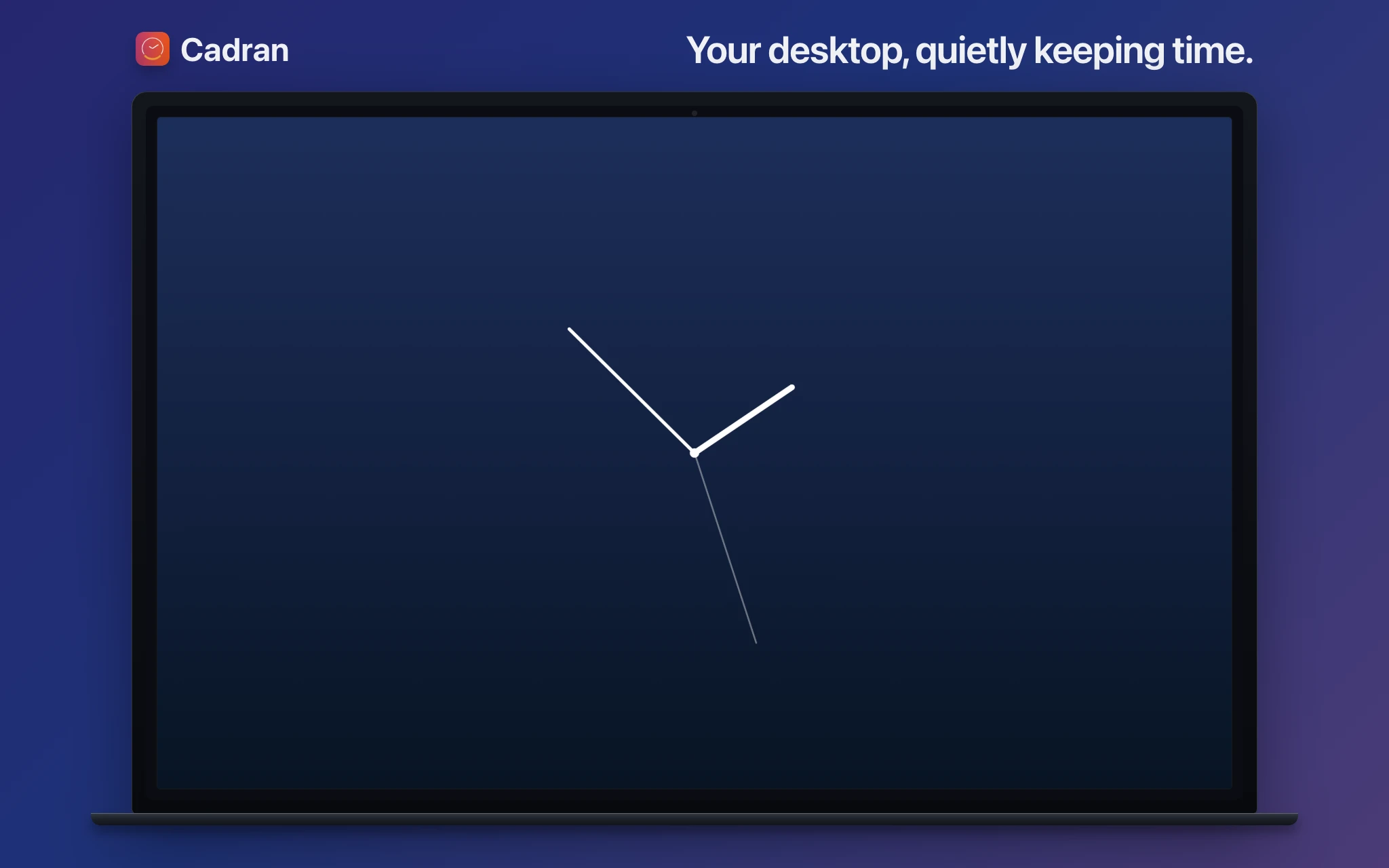
Wallpaper Engine is the most well-known option, originally built for Windows and now on Mac. It has a massive Steam Workshop community with thousands of animated wallpapers: particle effects, 3D scenes, audio-reactive visualizers. The library is unmatched. The trade-off is resource usage: complex scenes can push your GPU hard, especially on laptops. Wallper is a newer native Mac app that's grown to over 20,000 users. It focuses on 4K video wallpapers with a curated library of 1,500+ options. It supports lock screen wallpapers (a macOS Tahoe feature), multi-monitor with per-display controls, and auto-pauses on battery. Lightweight and feels genuinely Mac-native. Backdrop by Cindori was the first app to reverse-engineer macOS to support custom lock screen video wallpapers. It has a built-in editor so you can create your own wallpapers, plus a community library of 1,000+ scenes. Multi-monitor ready, works on Sonoma through Tahoe. gifPaper takes a unique approach: the developer creates every wallpaper by hand (150+ so far, some with ambient music) and converts them to Apple's native Aerial format. This means tiny file sizes (4-8 MB), zero CPU usage on the lock screen, and smooth unlock transitions. Requires macOS Tahoe. $4.99 one-time. MotionDesk is for people who want interactivity. It uses Metal (Apple's GPU framework) to run real-time physics simulations as wallpapers, and your cursor affects the animation. 10+ themes with 200+ customizable parameters. The free tier includes two themes; the full set is $19.99 one-time. Cadran is different from the others. Instead of video or animation, it renders functional clock faces on your wallpaper layer. 22 designs ranging from split-flap to analog to weather dashboards. It doubles as a screensaver. 6 faces are free, the full set is €9.99 one-time.
How to choose
It depends on what you want your desktop to do. For the biggest library of animated wallpapers: Wallpaper Engine. Nothing else comes close in variety, but it's heavier on resources. For curated 4K video wallpapers with a native Mac feel: Wallper or Backdrop. Both support lock screen and multi-monitor. Wallper has a larger library; Backdrop has a built-in editor. For artistic, hand-crafted wallpapers with zero performance cost: gifPaper. The Aerial format trick is clever: your Mac doesn't even know it's running a third-party wallpaper. For interactive, physics-driven wallpapers: MotionDesk. The cursor-reactive simulations are genuinely fun, and it's built on Metal so performance is solid. For a functional wallpaper that shows the time, weather, or date: Cadran. It's the only one in this list where the wallpaper actually does something useful beyond looking good. All of these have free tiers or trials, so you can try before committing.
The Mac live wallpaper space has matured a lot. You're no longer choosing between "Apple's defaults" and "Wallpaper Engine." There are native, lightweight, creative options at every price point. Try a couple, see what fits your workflow, and don't worry about picking the "best" one. Your desktop is yours to experiment with.