
Your Mac desktop is the first thing you see when you open your laptop and the last thing you see before closing it. Yet most people never change it from the default. In 2026, macOS gives you more customization options than ever, from native widgets to wallpaper-layer apps. Here's how to make your desktop truly yours.
1. Start with your wallpaper
macOS Sequoia and later ship with dynamic wallpapers that shift throughout the day, but you can go further. Sites like Unsplash and Pexels offer thousands of high-resolution images. For something more dynamic, consider apps that render animated content directly on the wallpaper layer, like a live clock or weather display that sits behind your icons rather than floating on top of them.
2. Use desktop widgets wisely
macOS Sonoma introduced desktop widgets, bringing information like weather, calendar events, and reminders to your desktop. The key is restraint: too many widgets create clutter. Pick 2–3 that you actually glance at during the day and place them where they don't overlap with your most-used files and folders.
3. Add a desktop clock
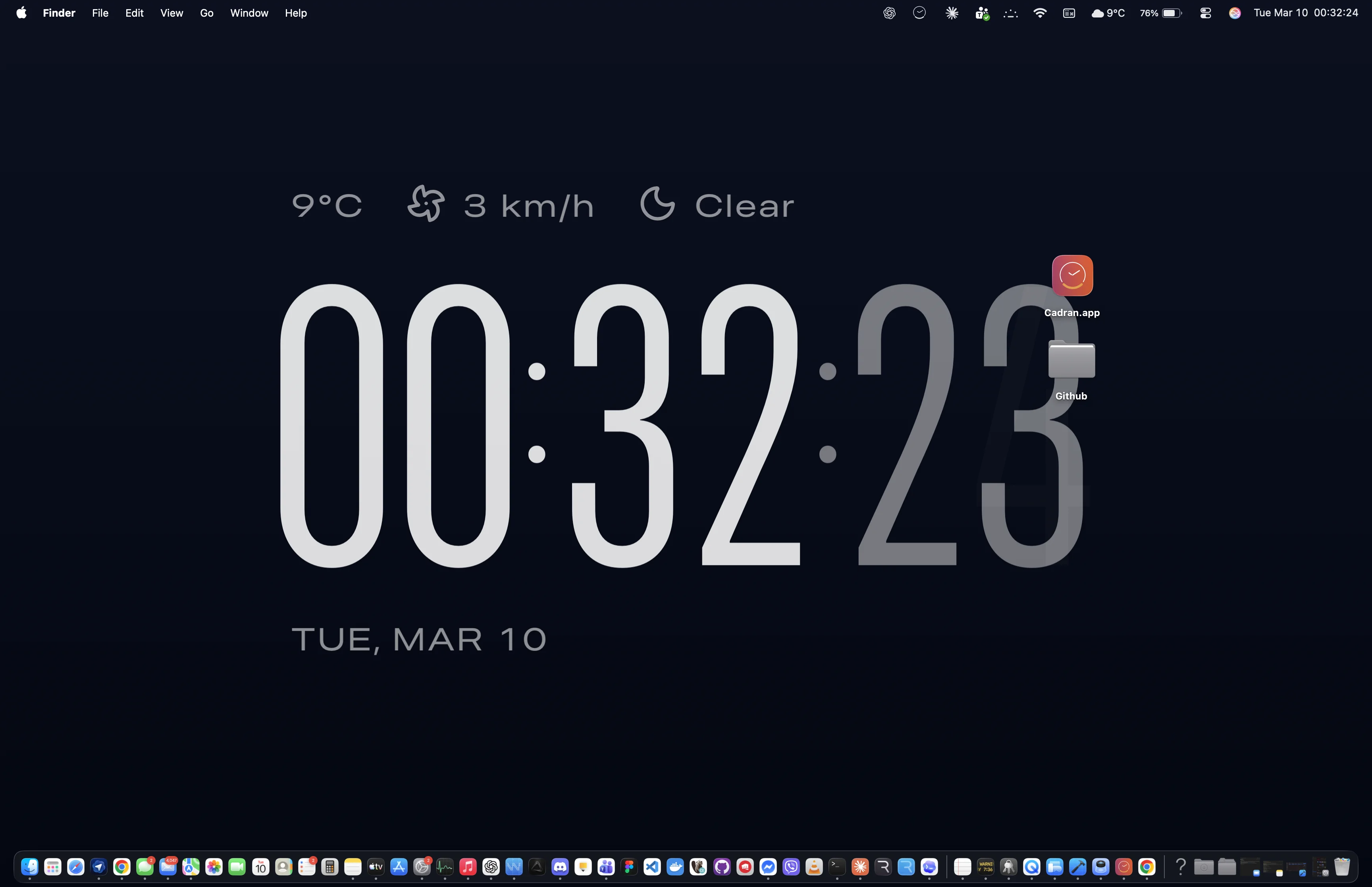
A clock on your desktop is one of those small details that makes a big difference. Rather than glancing at the tiny menu bar time, you can have a beautifully designed clock face as part of your wallpaper. Apps like Cadran render 22 different clock designs directly on the wallpaper layer, behind your icons, not on top of them. It's always visible without ever getting in the way. Some designs even show live weather data or shift colors with the real sky.
4. Set up a screensaver that matches
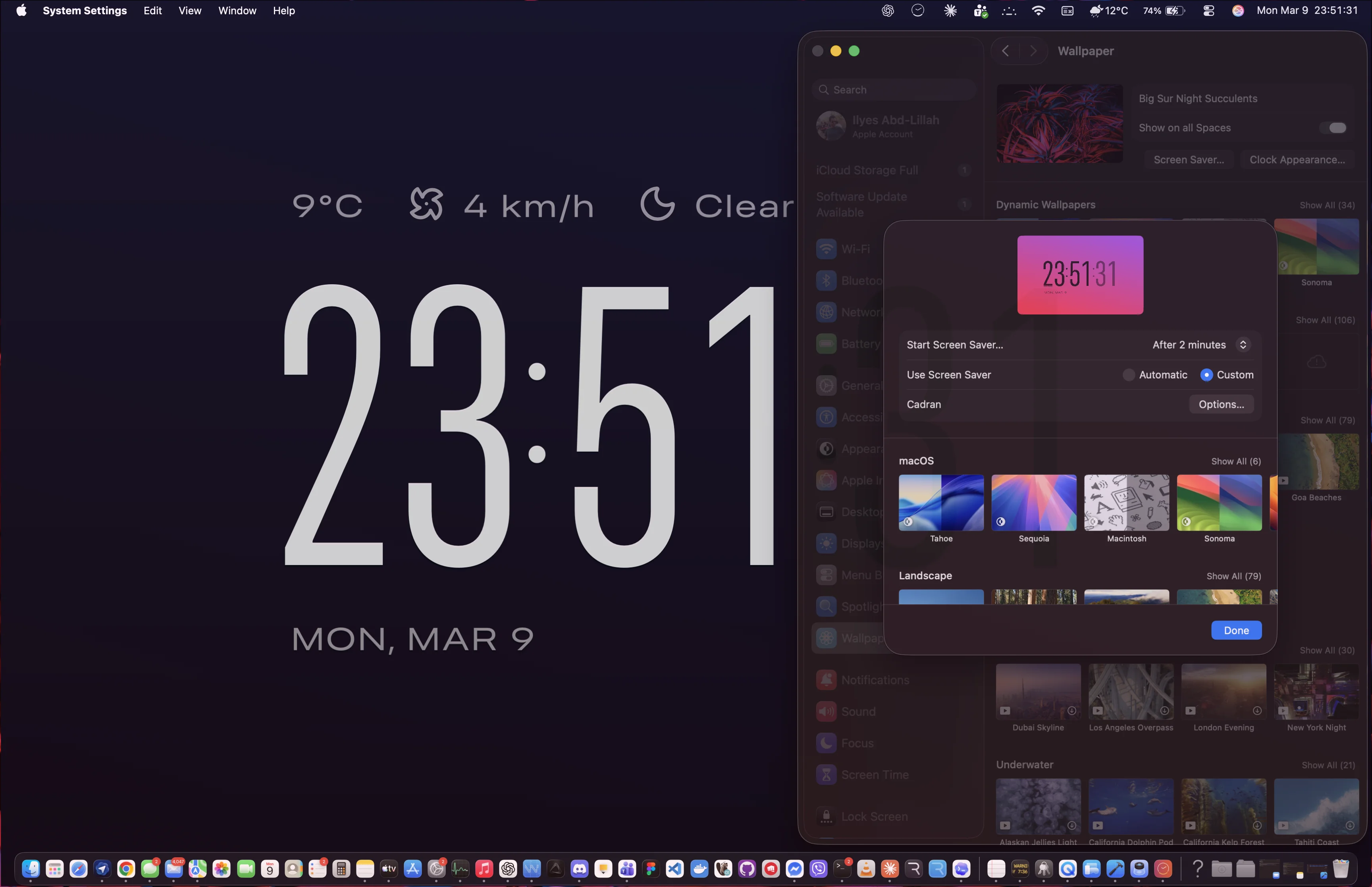
Your screensaver is an extension of your desktop personality. macOS includes some beautiful built-in options, but third-party screensavers can match your desktop theme perfectly. If you use a clock wallpaper app, look for one that also works as a screensaver. That way, your Mac looks intentional whether you're actively using it or it's sitting idle on your desk.
5. Multi-monitor setups
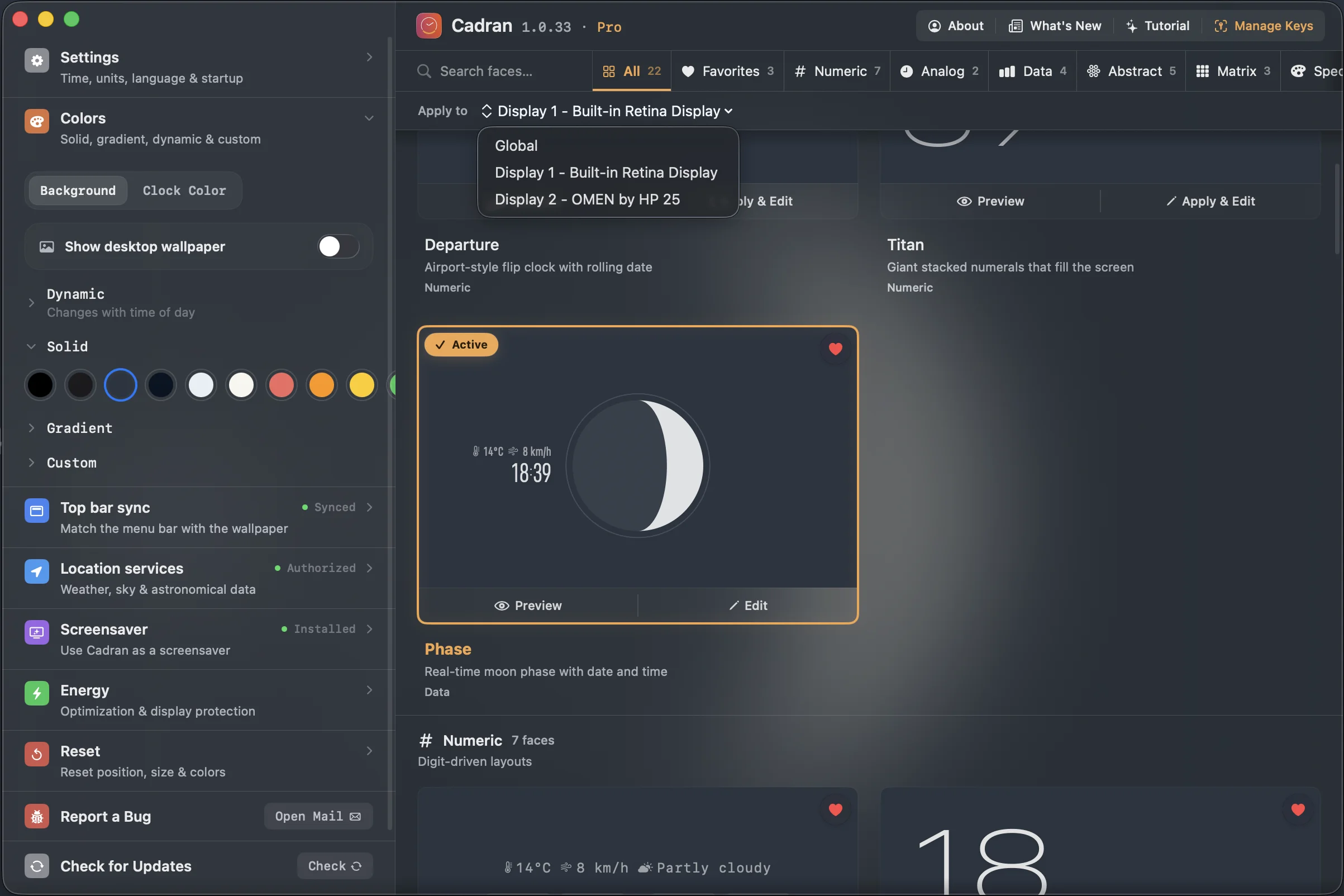
If you use multiple displays, don't settle for the same wallpaper on every screen. macOS lets you set different wallpapers per display in System Settings. Some apps go further. Cadran, for example, lets you assign a different clock face and color palette to each monitor independently. A minimal analog clock on your main display and a data-heavy face on your secondary monitor can make each screen feel purposeful.
The best desktop setup is one you don't have to think about. It just works and looks right. Start with one change, see how it feels for a few days, then iterate. Your desktop is yours. Make it feel that way.