macOS Sonoma introduced desktop widgets, including a clock. It's a nice addition, but it comes with some real limitations. Here's how to get a clock on your Mac desktop, starting with the built-in option, and what to do when it's not enough.
The built-in macOS Clock widget
Adding a clock widget to your Mac desktop takes about 30 seconds: 1. Right-click anywhere on your desktop. 2. Click "Edit Widgets." 3. Search for "Clock" in the widget gallery. 4. Drag the Clock widget to your desktop. You can choose between an analog face and a digital display. You can also pick a city to show a different time zone. That's about it for customization: there are only a couple of styles, and you can't change the size or color. It works, and it's free. But there are some frustrations you'll notice quickly.
Why the widget might not be enough
The macOS clock widget has a few limitations that become obvious after a day or two: It sits on top of your desktop icons. If you have files or folders where the widget is, they're hidden behind it. It fades when you click the desktop. macOS reduces widget opacity to about 30% when you interact with the desktop, making the clock hard to read exactly when you're looking at it. You can't change the design much. There's no way to pick a different font, color, or style beyond analog vs. digital. If you just want a quick time reference in the corner of your screen, the built-in widget is fine. But if you want something that's always clearly visible and fits your desktop aesthetic, you need a different approach.
Wallpaper-layer clocks
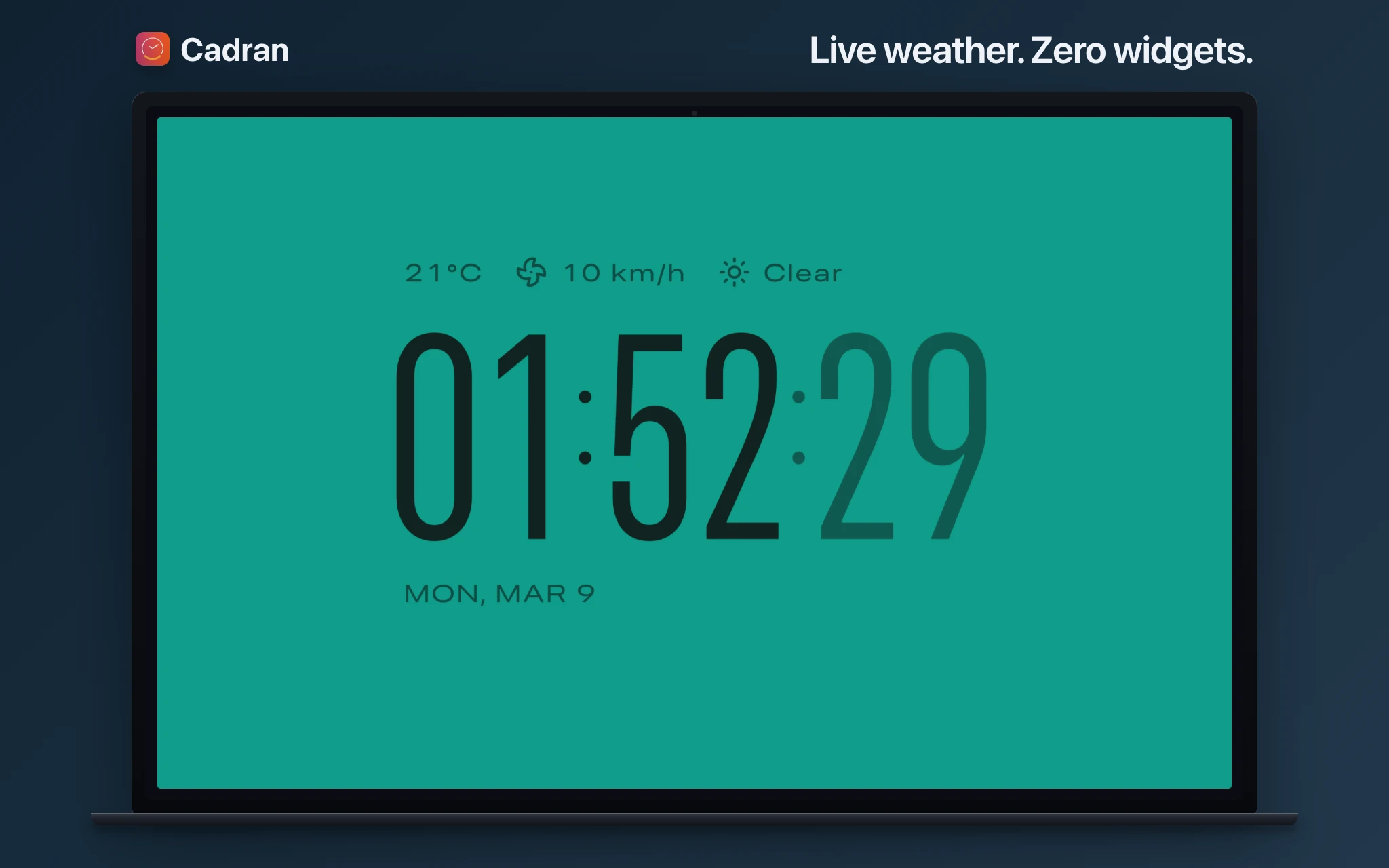
Instead of floating on top of your desktop, some apps render the clock at the wallpaper level, behind your icons, not in front of them. The clock becomes part of your background, always visible, never covering anything. Cadran does exactly this. It renders one of 22 clock face designs directly into your wallpaper layer. The clock is always there. You don't need to click the desktop or move windows to see it. It also works as a screensaver, so your Mac shows the same clock when idle. Some faces show live weather data, others shift colors based on actual sun position. You can assign a different face to each monitor if you have a multi-display setup.
Which approach is right for you
The built-in widget is quick, free, and requires no install. It's the right choice if you just want a small clock in the corner and don't mind the fading behavior. Best for a casual time check. A wallpaper-layer clock is always visible, offers more designs, and doesn't cover your icons. It's the better option if you want the clock as part of your desktop look, something that's genuinely there all day, not something you have to squint at through 30% opacity.
Start with the built-in widget. It takes 30 seconds and costs nothing. If you find yourself wishing it were more visible, more customizable, or less in the way, try a wallpaper-layer clock like Cadran. Six faces are free, so you can see the difference without spending anything.