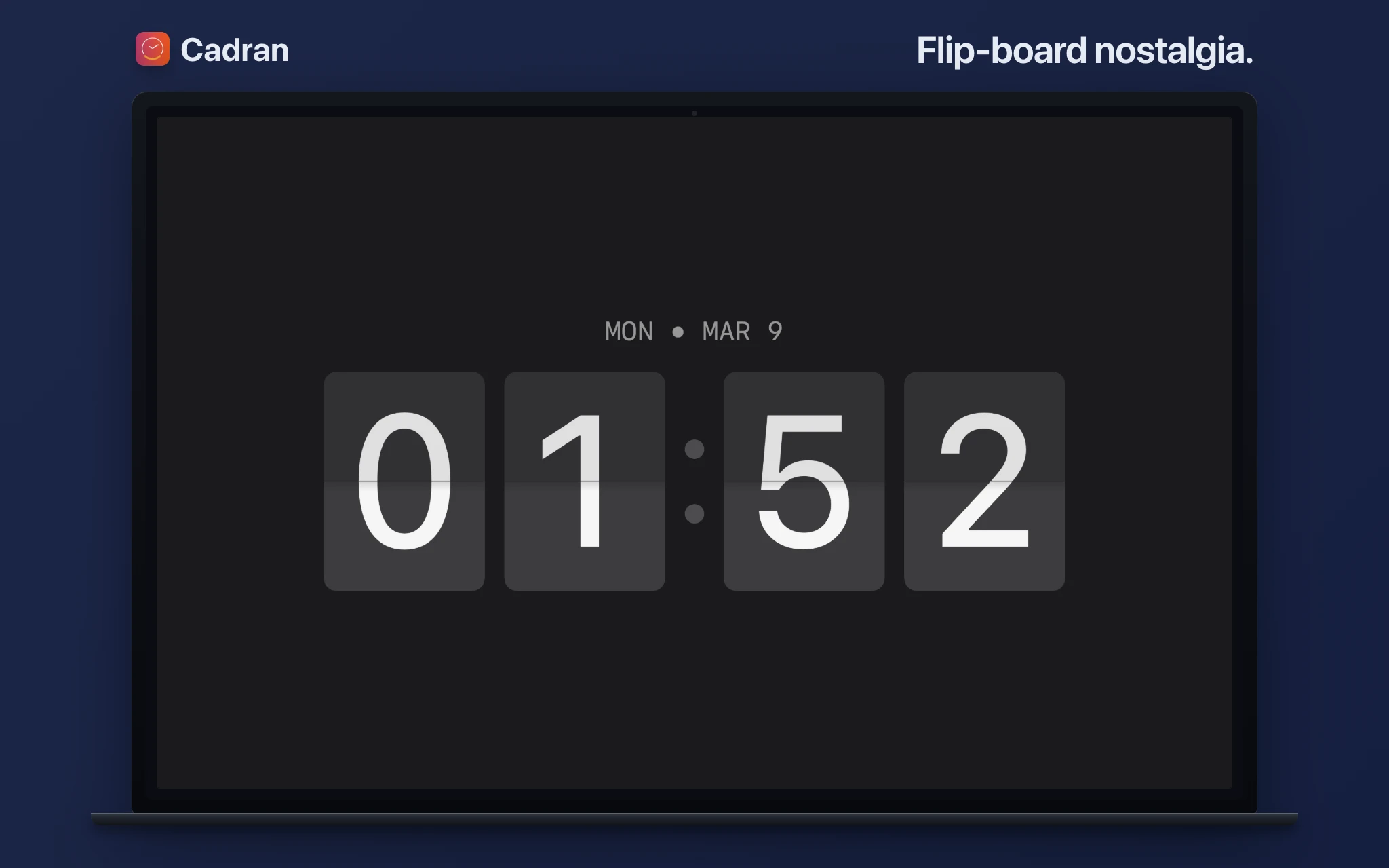
macOS shows the time in the menu bar, but it's small and easy to miss, especially on large or multi-monitor setups. If you want a proper clock on your desktop that you can see at a glance, here are three approaches, from simplest to most customizable.
Option 1: Use a macOS Clock widget
Since macOS Sonoma, you can add widgets to your desktop. The built-in Clock widget shows time in analog or digital format. To add it: right-click your desktop → Edit Widgets → search for Clock → drag it to your desktop. The downside is that widgets sit on top of your icons and files, and macOS only offers a few clock styles.
Option 2: Use a screensaver clock
Screensaver clocks like Fliqlo show a clock when your Mac is idle. They look great but have a fundamental limitation: you only see the clock when you're not using your Mac. The moment you move your mouse, the clock disappears. If you want a clock visible while you work, a screensaver won't do.
Option 3: Use a wallpaper-layer clock app
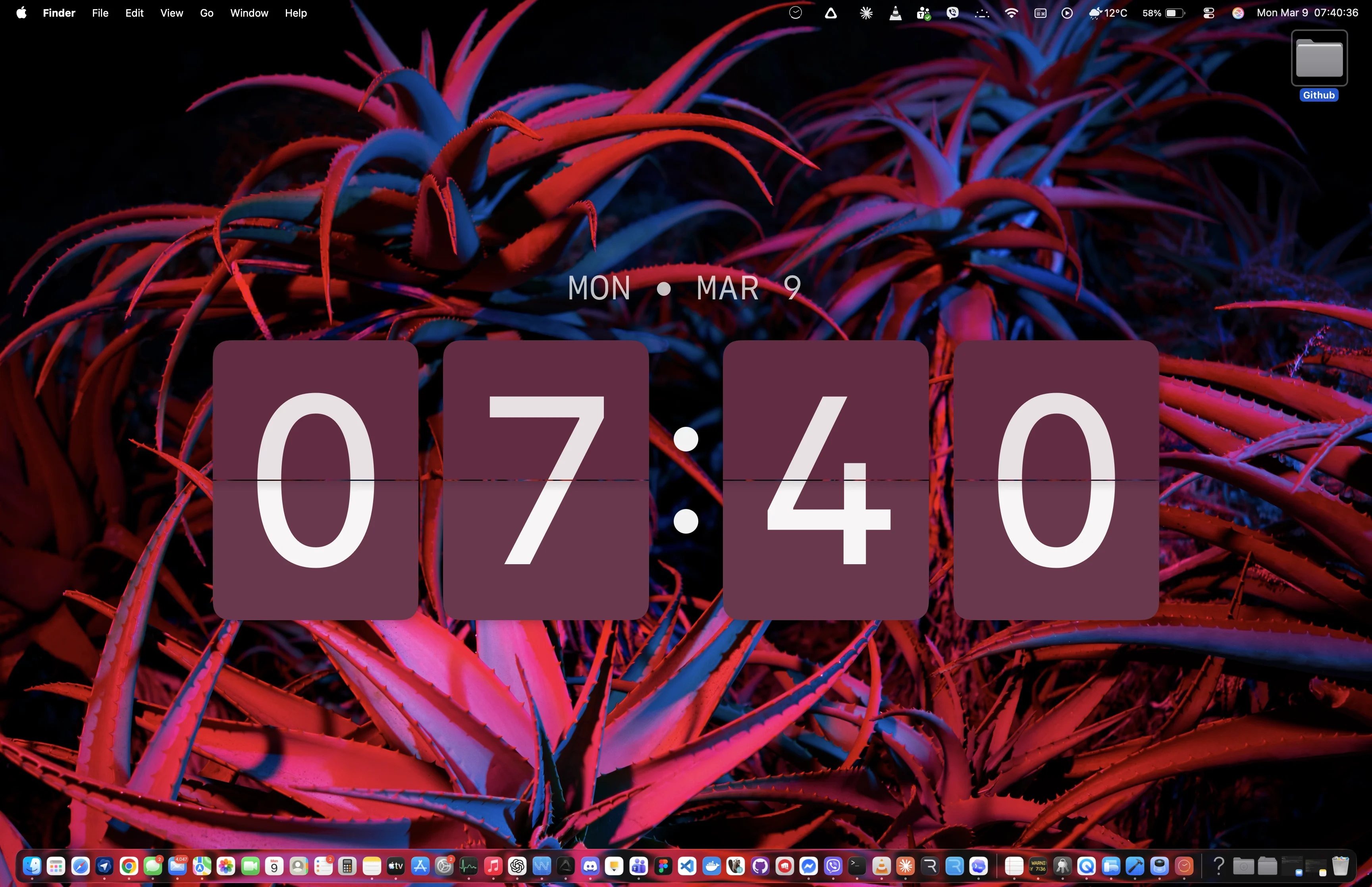
Options 1 and 2 each solve half the problem. Widgets show a clock while you work but clutter your desktop, screensavers look beautiful but vanish the moment you touch your mouse. Cadran gives you both in a single app. It renders a clock face directly on your wallpaper layer, behind your desktop icons, always visible while you work, never in the way. And when your Mac goes idle, the same clock face becomes your screensaver. One app, two modes, zero overlap. 22 clock designs: split-flap digits, analog dials, pixel art weather clocks, word clocks, binary matrices, and more. Some show live weather data, others shift colors with the real sky. You can assign a different face to each monitor. 6 faces are free forever. The full collection is a one-time €9.99 unlock, no subscription.
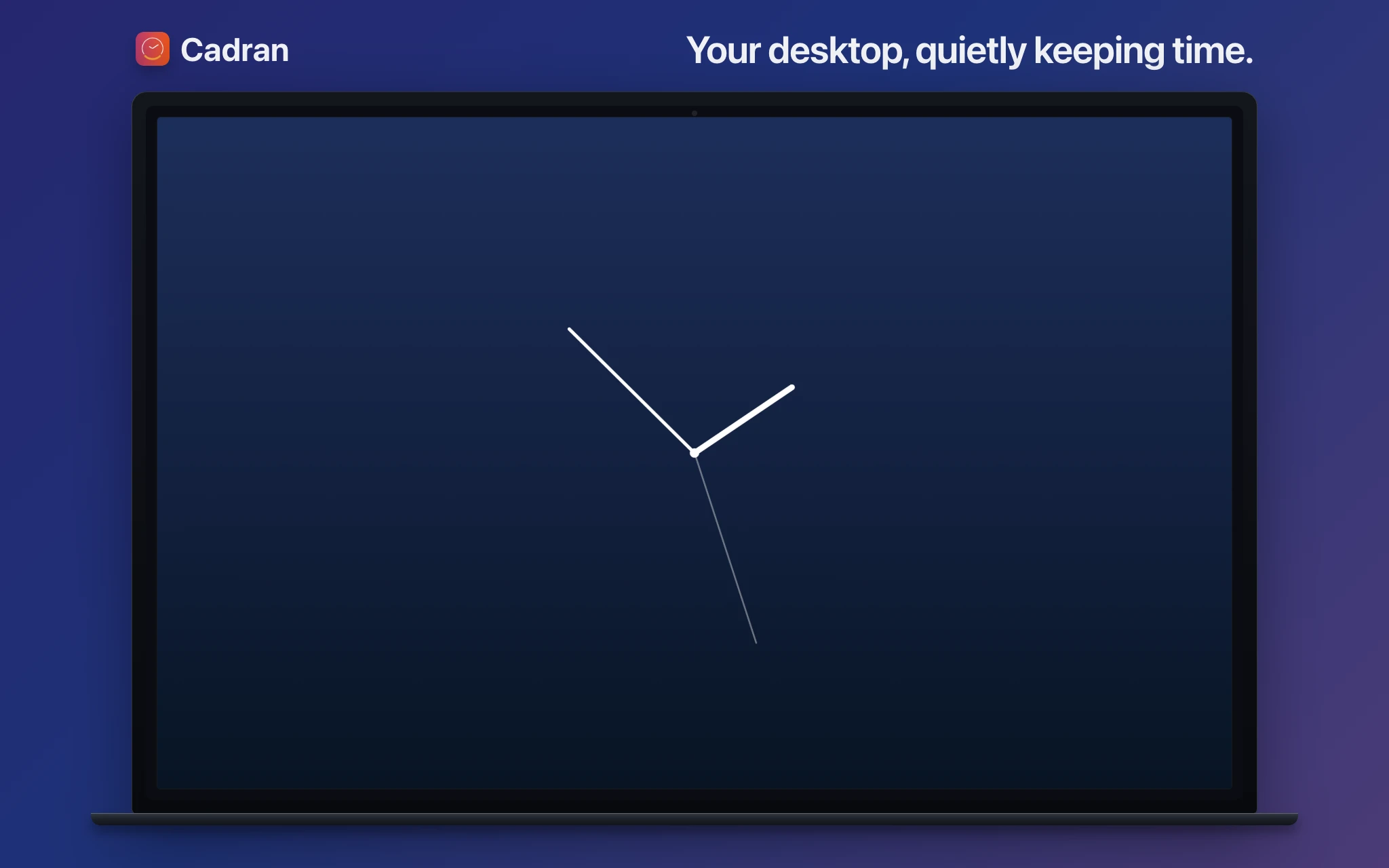
Widgets work but clutter your desktop. Screensavers disappear when you need them. Cadran is the only app that covers both: a wallpaper clock while you work, and a screensaver when you step away. One install, always visible, never in the way.