macOS doesn't ship with a dedicated clock app. You get the time in the menu bar, but it's small and easy to miss, especially on a large monitor. If you've ever wished for a proper clock on your desktop, here are four different approaches, each suited to a different workflow.
macOS Clock Widget (Built-in, Free)
Start here, because it's already on your Mac. Since macOS Sonoma, you can add widgets directly to your desktop, including a clock. Right-click your desktop, choose Edit Widgets, search for "Clock," and drag one out. You can pick analog or digital, and it shows up right on your desktop. The good: no install needed, looks native, and Apple keeps it updated. The not-so-good: the widget sits on top of your desktop icons, it fades when you have windows open (you need to click the desktop to see it again), and there are only a couple of styles. It's a fine starting point, but if you want something more visible or customizable, you'll want a third-party option.
Dato · Menu Bar Clock & Calendar
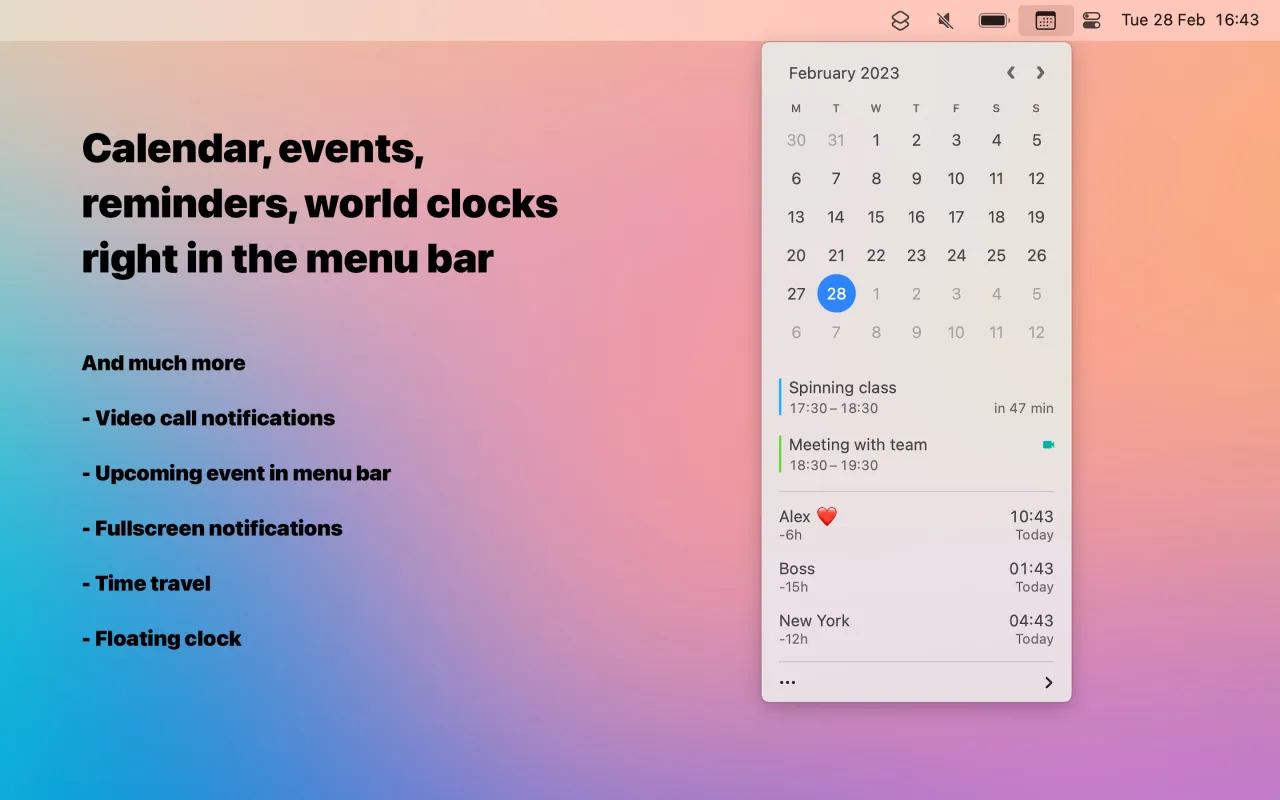
Dato isn't really a desktop clock. It's a menu bar replacement that's far more capable than Apple's built-in clock. Click it and you get a dropdown with a full calendar, time zones for your team, a countdown to your next meeting, and customizable date formats. It's made by Sindre Sorhus, who's behind a bunch of well-regarded Mac utilities. If your "I need a clock" problem is really "I need to quickly check what time it is in Tokyo and when my next call starts," Dato solves that better than any desktop clock would. It's a paid app on the Mac App Store, but it's actively maintained and worth it for remote workers or anyone juggling multiple time zones.
Clock mini · Floating Window Clock
Clock mini is the straightforward option: a small, resizable clock window that floats on your desktop. You can choose analog or digital, adjust the size, change colors, and pin it on top of other windows if you want it always visible. It does one thing and does it well. The trade-off is that it's a window: it covers whatever's behind it, and you might accidentally drag or close it. But if you just want a simple clock you can glance at without reaching for the menu bar, Clock mini is lightweight and gets the job done.
Cadran · Clock on Your Wallpaper
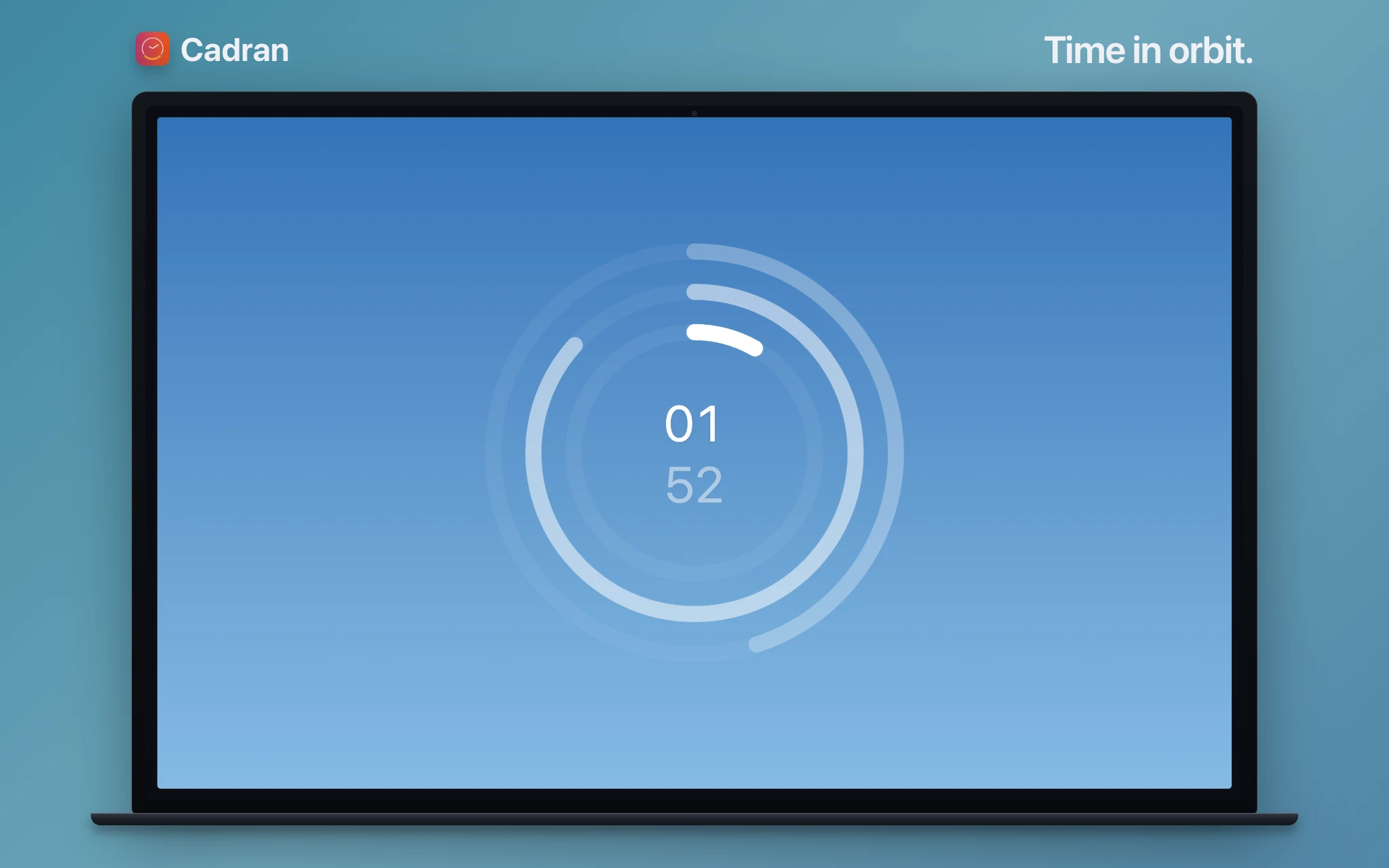
Cadran takes a different approach: instead of floating on top of your desktop, the clock renders into your wallpaper layer, behind your icons. The effect is more like your wallpaper itself is a clock, always visible but never in the way. If you care about how your desktop looks as much as what time it is, this is the one to try. It's also a native macOS screensaver, so the same clock face appears when your Mac goes idle. Free to use with 6 faces, €9.99 one-time for all 22.
Which One Fits You
The built-in widget is the obvious first step. It's free, requires no install, and works well enough for a quick time check. Dato is the right call if your real need is time zones, calendar integration, and meeting awareness rather than a visual clock. Clock mini is for people who want a simple, movable clock window without any complexity. Cadran is the pick if you want the clock woven into your desktop rather than floating on top of it. They're not mutually exclusive, either. Plenty of people run Dato in the menu bar and something else on the desktop.
The best clock app depends on what you actually need. Try the built-in widget first. It's free and already on your Mac. If it's not enough, the other three each solve the problem differently.