Clock widgets and wallpaper clocks both put time on your desktop, but they behave very differently. One floats above content, the other blends into the background layer. The right choice depends on your workflow.
Clock widgets: fast but intrusive
Widgets are easy to add and useful for glanceable info, but they sit above your wallpaper and can crowd your desktop. As your file count grows, widgets often become visual noise instead of helpful structure.
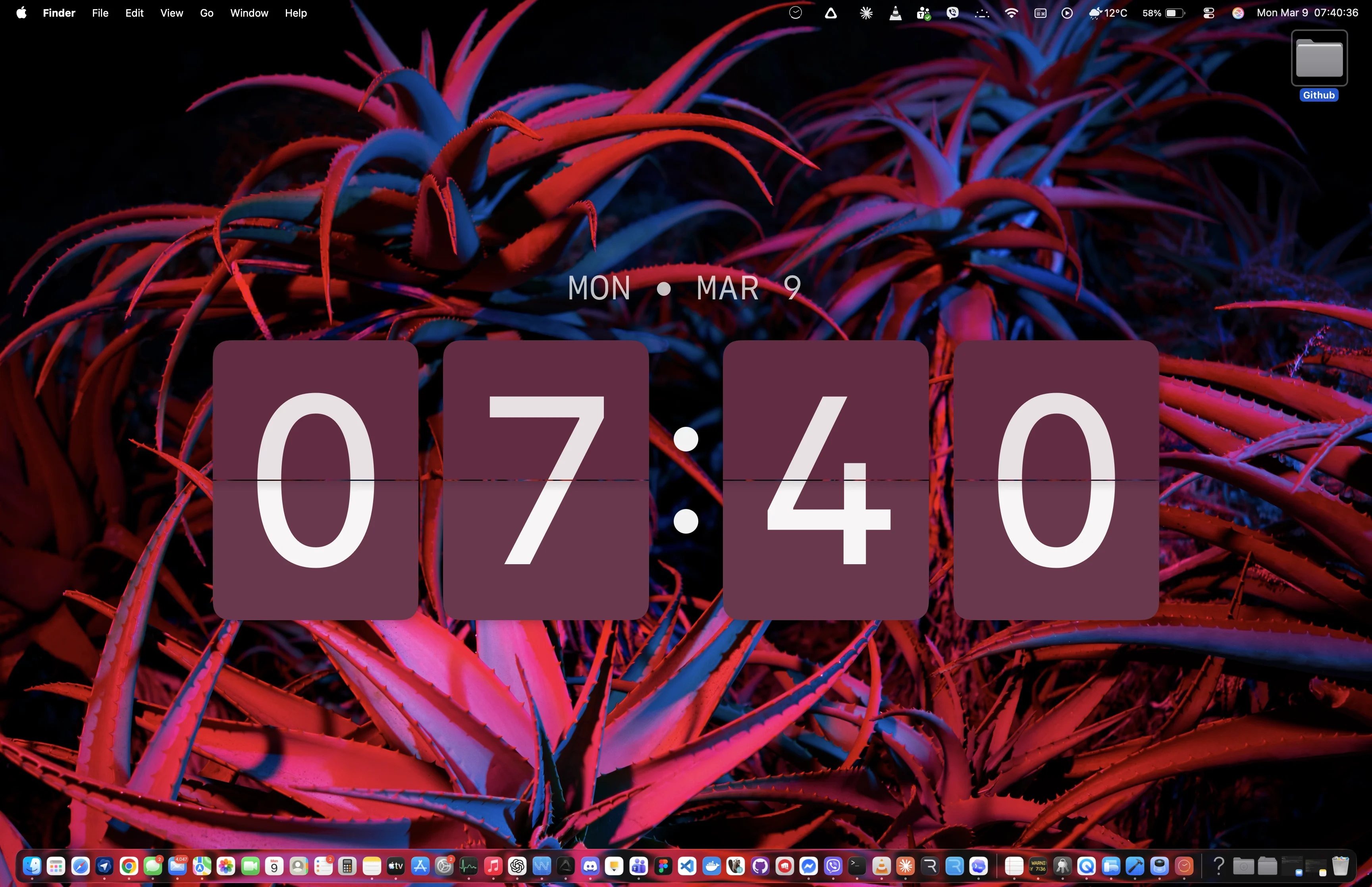
Wallpaper clocks: calmer during work
Wallpaper-layer clocks stay visible without covering your workspace. You keep time awareness across Spaces and monitors while preserving visual calm, especially with auto-contrast text on complex backgrounds.
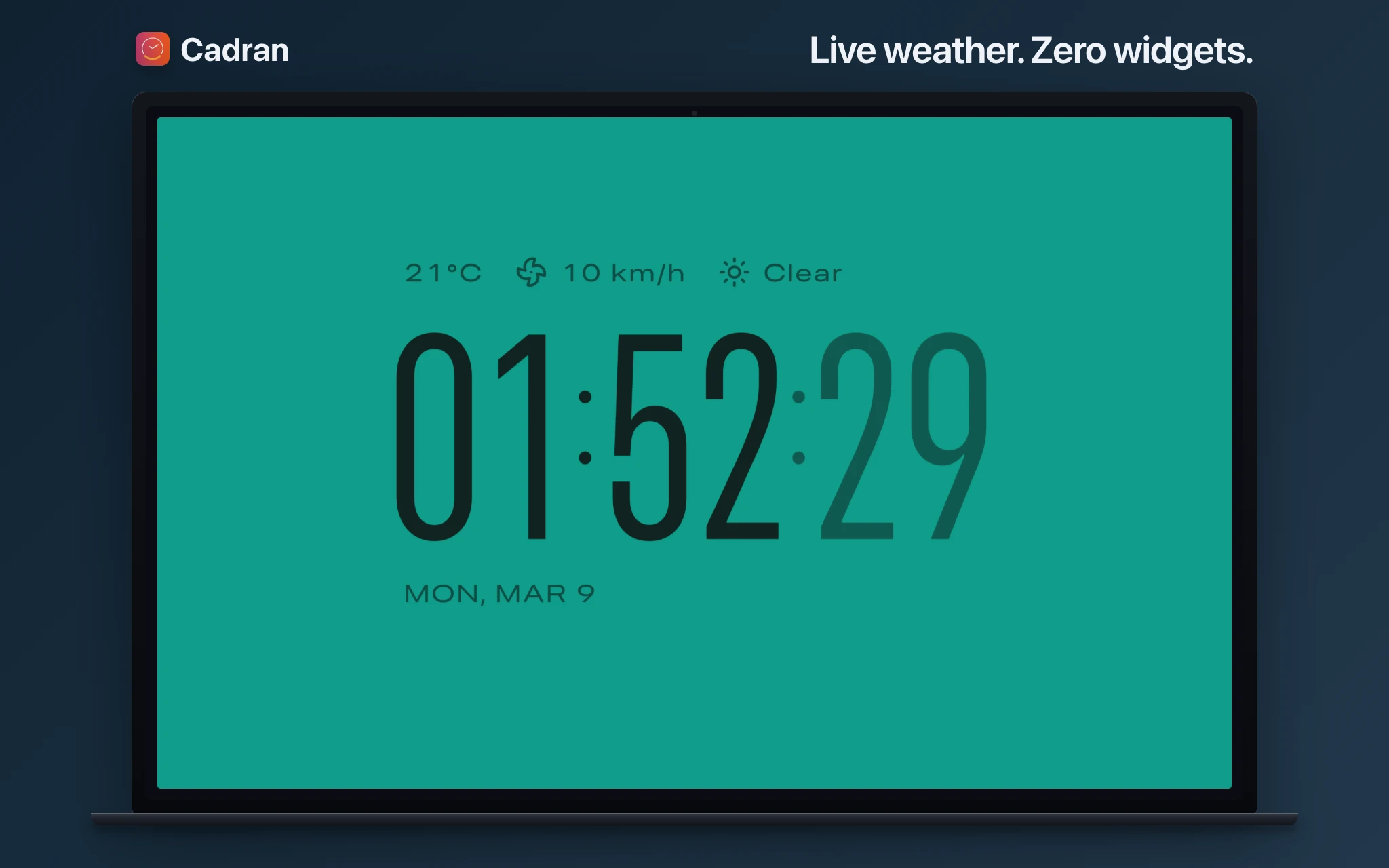
Which one to choose
Choose widgets if you want small info cards you can hide often. Choose a wallpaper clock if you want continuous time visibility with minimal distraction. For productivity-focused setups, wallpaper clocks are usually the better long-term fit.
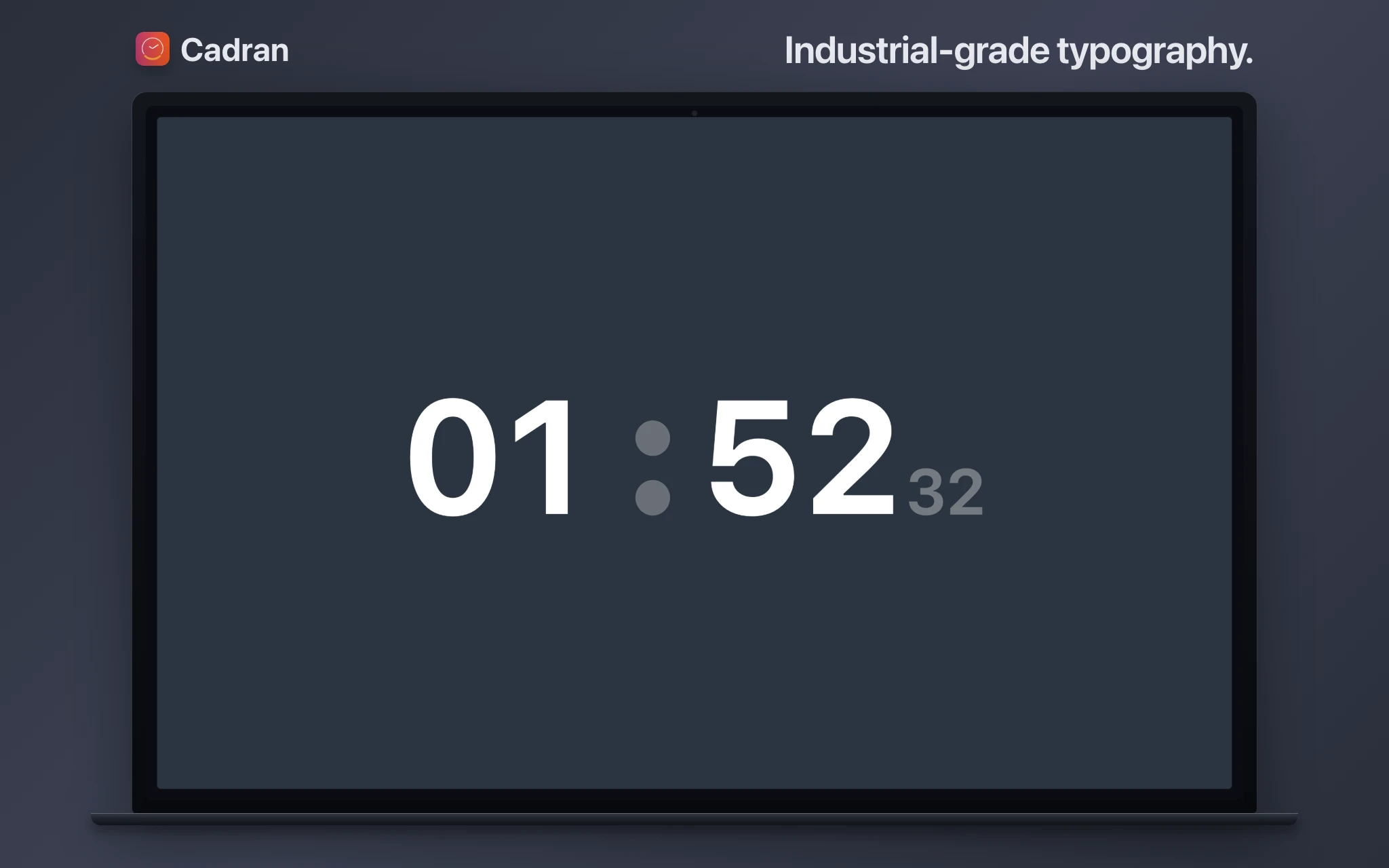
For most people, widgets are quick to try but hard to keep clean over time. Wallpaper clocks are less intrusive and scale better as your desktop setup grows. If focus matters, start there.